> For the complete documentation index, see [llms.txt](https://help.marcopayroll.com/llms.txt). Markdown versions of documentation pages are available by appending `.md` to page URLs; this page is available as [Markdown](https://help.marcopayroll.com/marco-user-guide-x4/2025/marco-platform-structure/customer-portal/manager-guide/time-and-leave/managing-leave-requests.md).
# Managing Leave Requests
***
### **Leave Request Flow**
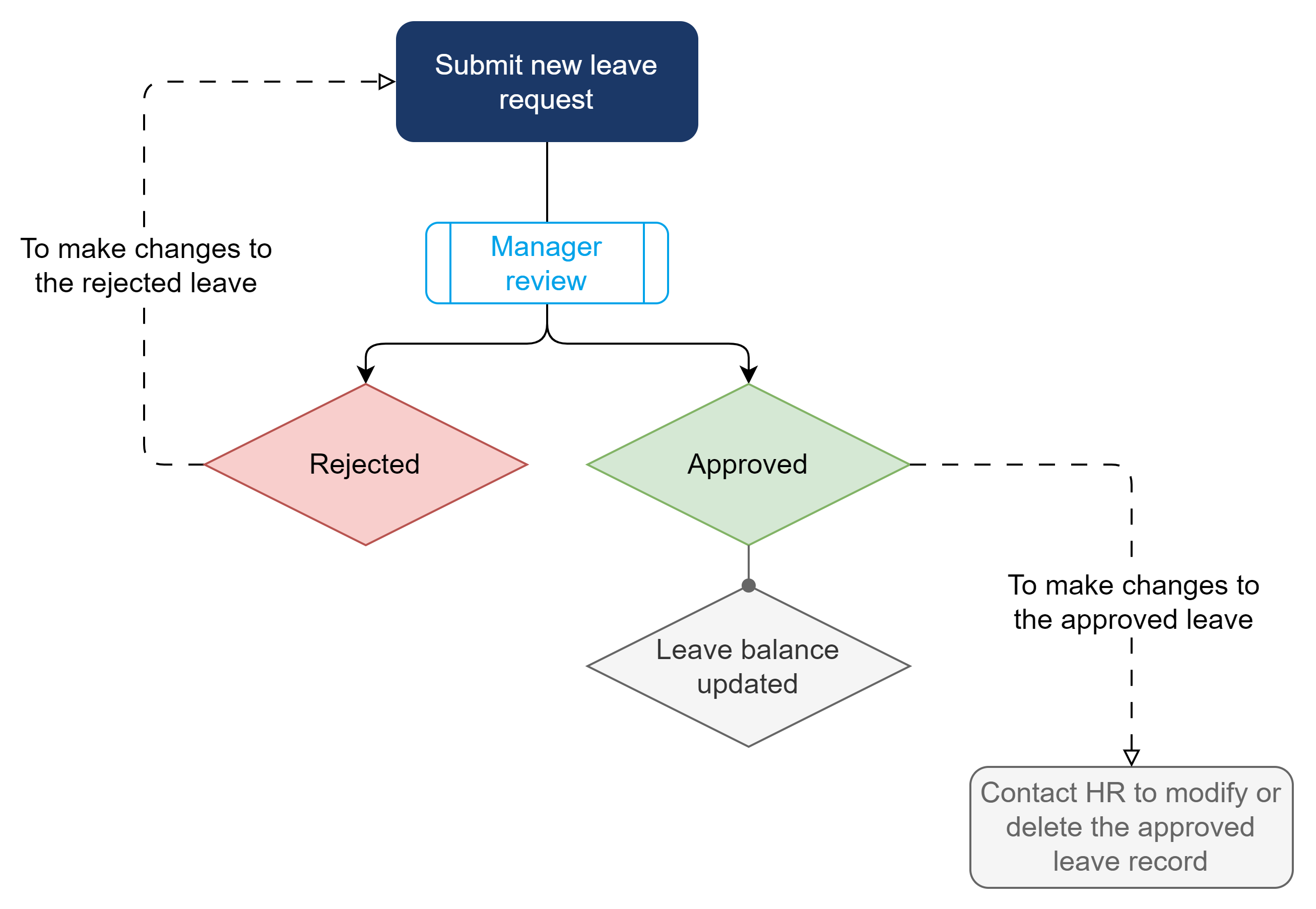
The **leave request process** in Marco follows these steps:
1. **Staff submits** a leave request.
2. **Manager reviews** the request.
3. **Staff is notified** of the outcome.
Leave Request Flow
***
### **Viewing Leave Records**
You can view a staff member’s leave records in the following tabs:
* **People > Time > Time-off Records** – View a single staff member’s leave records.
* **Time** – View all leave records for your assigned staff.
***
### **Approving Leave Requests**
Who can use this feature:
* **Reporting Managers**
* **Admin Managers**
* **Time Managers**
#### **Steps to Approve Leave Requests**
{% tabs %}
{% tab title="People" %}
1. Go to **People**.
2. Select a staff member > **Time > Time-off Records**.
3. Select the leave request to view supporting documents or notes.
4. Click **Approve** or **Reject**.
* **Approve**: A confirmation pop-up appears. Click **OK**.
* **Reject**: The **Rejection Notes** screen appears. Enter the reason for rejection and click **Reject**.
{% endtab %}
{% tab title="Time" %}
1. Go to **Time**.
2. Select the leave request to view supporting documents or notes.
3. Click **Approve** or **Reject**.
* **Approve**: A confirmation pop-up appears. Click **OK**.
* **Reject**: The **Rejection Notes** screen appears. Enter the reason for rejection and click **Reject**.
{% endtab %}
{% endtabs %}
**Notification:** The staff member will receive an email with the outcome and can log in to Marco to view it.
***
### **Modifying Approved Leave Requests**
Once approved, **staff cannot edit or delete leave requests**. They may request **you** to make modifications.
* **Editable fields:** **Leave duration, start date, and end date.**
* **Non-editable fields:** **Leave type, supporting documents, and notes.**
* If other details need to be changed, **delete the request** and ask the staff member to submit a new one.
***
### **Editing Leave Requests**
Who can use this feature:
* **Admin Managers**
* **Time Managers**
You can **edit approved leave requests** on behalf of staff.
#### **Steps to Edit Leave Requests**
{% tabs %}
{% tab title="People" %}
1. Go to **People**.
2. Select a staff member > **Time > Time-off Records**.
3. Under the leave request, click **⋮ (three-dot icon) > Edit**.
4. The **Edit Leave Record** screen appears.
5. Update the leave duration, start date, or end date.
6. Click **Save Changes**.
{% endtab %}
{% tab title="Time" %}
1. Go to **Time**.
2. Under the leave request, click **⋮ (three-dot icon) > Edit**.
3. The **Edit Leave Record** screen appears.
4. Update the leave duration, start date, or end date.
5. Click **Save Changes**.
{% endtab %}
{% endtabs %}
***
### **Deleting Leave Requests**
Who can use this feature:
* **Admin Managers**
* **Time Managers**
You can **delete any leave request**, but **this action is irreversible**. Deleted requests can be viewed in **Deleted Items**.
#### **Steps to Delete Leave Requests**
{% tabs %}
{% tab title="People" %}
1. Go to **People**.
2. Select a staff member > **Time > Time-off Records**.
3. Under the leave request, click **⋮ (three-dot icon) > Remove**.
{% endtab %}
{% tab title="Time" %}
1. Go to **Time**.
2. Under the leave request, click **⋮ (three-dot icon) > Remove**.
{% endtab %}
{% endtabs %}
***
### **Adding Leave Records**
Who can use this feature:
* **Admin Managers**
* **Time Managers**
As a manager, **leave records you add are automatically approved**.
#### **Steps to Add Leave Records**
{% tabs %}
{% tab title="People" %}
1. Go to **People**.
2. Select a staff member > **Time > Time-off Records**.
3. Click **Add New Record**.
4. The **Add New Leave Record** screen appears.
5. Enter the following details:
* **Leave type**
* **Leave dates**
* **Duration** (Full Day, Morning, Afternoon) for each date
* Upload supporting documents (if needed)
* Enter a reason in **Notes**
6. Click **Add Record**.
{% endtab %}
{% tab title="Time" %}
1. Go to **Time**.
2. Click **Add New Record**.
3. The **Add New Leave Record** screen appears.
4. Select a staff member.
5. Enter the following details:
* **Leave type**
* **Leave dates**
* **Duration** (Full Day, Morning, Afternoon) for each date
* Upload supporting documents (if needed)
* Enter a reason in **Notes**
6. Click **Add Record**.
{% endtab %}
{% endtabs %}
---
# Agent Instructions
This documentation is published with GitBook. GitBook is the documentation platform designed so that both humans and AI agents can read, navigate, and reason over technical content effectively. Learn more at gitbook.com.
## Querying This Documentation
If you need additional information that is not directly available in this page, you can query the documentation dynamically by asking a question.
Perform an HTTP GET request on the current page URL with the `ask` query parameter, and the optional `goal` query parameter:
```
GET https://help.marcopayroll.com/marco-user-guide-x4/2025/marco-platform-structure/customer-portal/manager-guide/time-and-leave/managing-leave-requests.md?ask=&goal=
```
`ask` is the immediate question: it should be specific, self-contained, and written in natural language.
`goal` is optional and describes the broader end goal you are ultimately trying to accomplish on behalf of the user. GitBook uses it to tailor the answer towards what is most useful for that goal.
The response will contain a direct answer to the question and relevant excerpts and sources from the documentation.
Use this mechanism when the answer is not explicitly present in the current page, you need clarification or additional context, or you want to retrieve related documentation sections.