> For the complete documentation index, see [llms.txt](https://help.marcopayroll.com/llms.txt). Markdown versions of documentation pages are available by appending `.md` to page URLs; this page is available as [Markdown](https://help.marcopayroll.com/marco-user-guide-x4/2025/marco-platform-structure/customer-portal/personal-guide/requesting-leave.md).
# Requesting leave
### **To request leave:**
1. Go to **Dashboard** or **My Time**.
2. Select **New Leave Request**. The **Add New Leave Request** screen appears.
3. Enter the following details for your leave request:
* **Leave type**
* **Leave dates**
* Select the leave duration (**Full Day, Morning, Afternoon**) for each leave date.
* Upload any **supporting documents**, if required.
* In **Notes**, enter the reason for your leave request.
4. Select **Add Record**. Your leave request has been submitted for review.
***
### **Unavailable Leave Types**
Some leave types, such as **maternity leave** or **bereavement leave**, may not be assigned to you by default. To apply for these, contact your **HR representative** to have the leave type granted to you in **Marco**.
Once the leave type is available, follow the standard procedure to request leave.
***
### **Leave Request Flow**
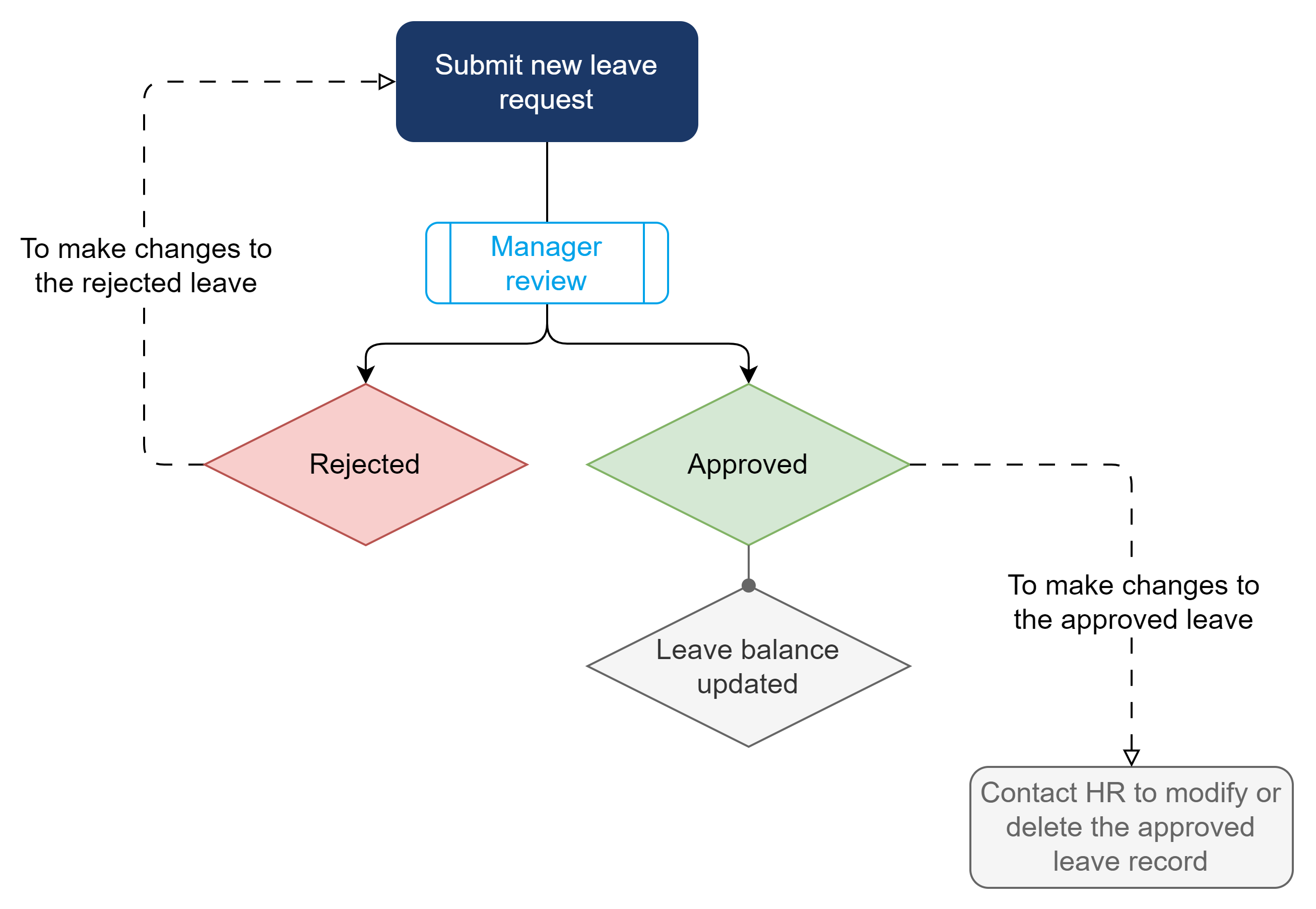
The leave request process in **Marco** follows a simple flow:
1. **Staff submits a leave request.**
2. **Manager reviews the request.**
3. **Staff is notified of the outcome.**
Leave Request flow
***
### **Leave Request Outcome**
Once your leave request has been reviewed, you will receive an **email notification** about the outcome.
You can also check the status of your leave request in **My Time > Time-off Records**.
* If your leave request is **rejected**, you can select the request to view the rejection notes.
* Rejected leave requests **cannot be edited for resubmission**, but you can create a new request instead.
***
### **Changes to Approved Leave**
Once a leave request has been approved, you **cannot delete or edit it**.
If you need to cancel or modify an approved request, contact your **HR representative or vendor** for assistance.
***
### **Editing Leave Requests**
You can edit **submitted** leave requests **only if your manager has not reviewed them yet**.
#### **To edit a leave request:**
1. Go to **My Time > Time-off Records**.
2. Under the leave request, select **⋮ (three-dot icon) > Edit**.
3. Update the relevant fields.
4. Select **Submit**. Your updated leave request has been submitted for review.
***
### **Deleting Leave Requests**
You can only delete **unapproved** leave requests.
⚠ **Note:** Deleting a request **cannot be undone**. However, all deleted requests can be viewed in **Deleted Items**.
#### **To delete a leave request:**
1. Go to **My Time > Time-off Records**.
2. Under the leave request, select **⋮ (three-dot icon) > Remove**.
---
# Agent Instructions
This documentation is published with GitBook. GitBook is the documentation platform designed so that both humans and AI agents can read, navigate, and reason over technical content effectively. Learn more at gitbook.com.
## Querying This Documentation
If you need additional information that is not directly available in this page, you can query the documentation dynamically by asking a question.
Perform an HTTP GET request on the current page URL with the `ask` query parameter, and the optional `goal` query parameter:
```
GET https://help.marcopayroll.com/marco-user-guide-x4/2025/marco-platform-structure/customer-portal/personal-guide/requesting-leave.md?ask=&goal=
```
`ask` is the immediate question: it should be specific, self-contained, and written in natural language.
`goal` is optional and describes the broader end goal you are ultimately trying to accomplish on behalf of the user. GitBook uses it to tailor the answer towards what is most useful for that goal.
The response will contain a direct answer to the question and relevant excerpts and sources from the documentation.
Use this mechanism when the answer is not explicitly present in the current page, you need clarification or additional context, or you want to retrieve related documentation sections.