> For the complete documentation index, see [llms.txt](https://help.marcopayroll.com/llms.txt). Markdown versions of documentation pages are available by appending `.md` to page URLs; this page is available as [Markdown](https://help.marcopayroll.com/marco-user-guide-x4/2025/marco-platform-structure/customer-portal/personal-guide/submitting-work-related-expenses.md).
# Submitting Work-Related Expenses
As a staff member, you will typically only need to submit **expense items**.
***
### **Before You Begin**
Ensure you have all **required supporting documents**, such as **receipts** or **invoices**.
You will also need to provide the following details for each expense or allowance item:
* **Currency**
* **Amount**
* **Date**
* *(For travel-related expenses)* **Travel details:**
* **Origin**
* **Destination**
* **Travel dates**
For **expense items**, you must manually enter the **expense name**.
For **allowance items**, you must select the **allowance name** from a predefined list of **allowance pay items**. Each allowance item also has a **payment type** (**Gross, Net, or CTC**).
***
### **Submitting an Expense Record**
#### **To submit an expense record:**
1. Go to **My Expense**.
2. Select **Add New Expense**.
3. *(For Expats)* Select the **Payment Currency**.
4. Select the **Record Type** (**Expense** or **Allowance**).
5. Enter the **expense details**.
6. In **Notes**, provide any additional details about the expense.
7. Upload any **supporting documents** in **Expense Files**.
8. Select **Submit**.
Your expense has been submitted for review.
***
### **Expense Approval Flow**
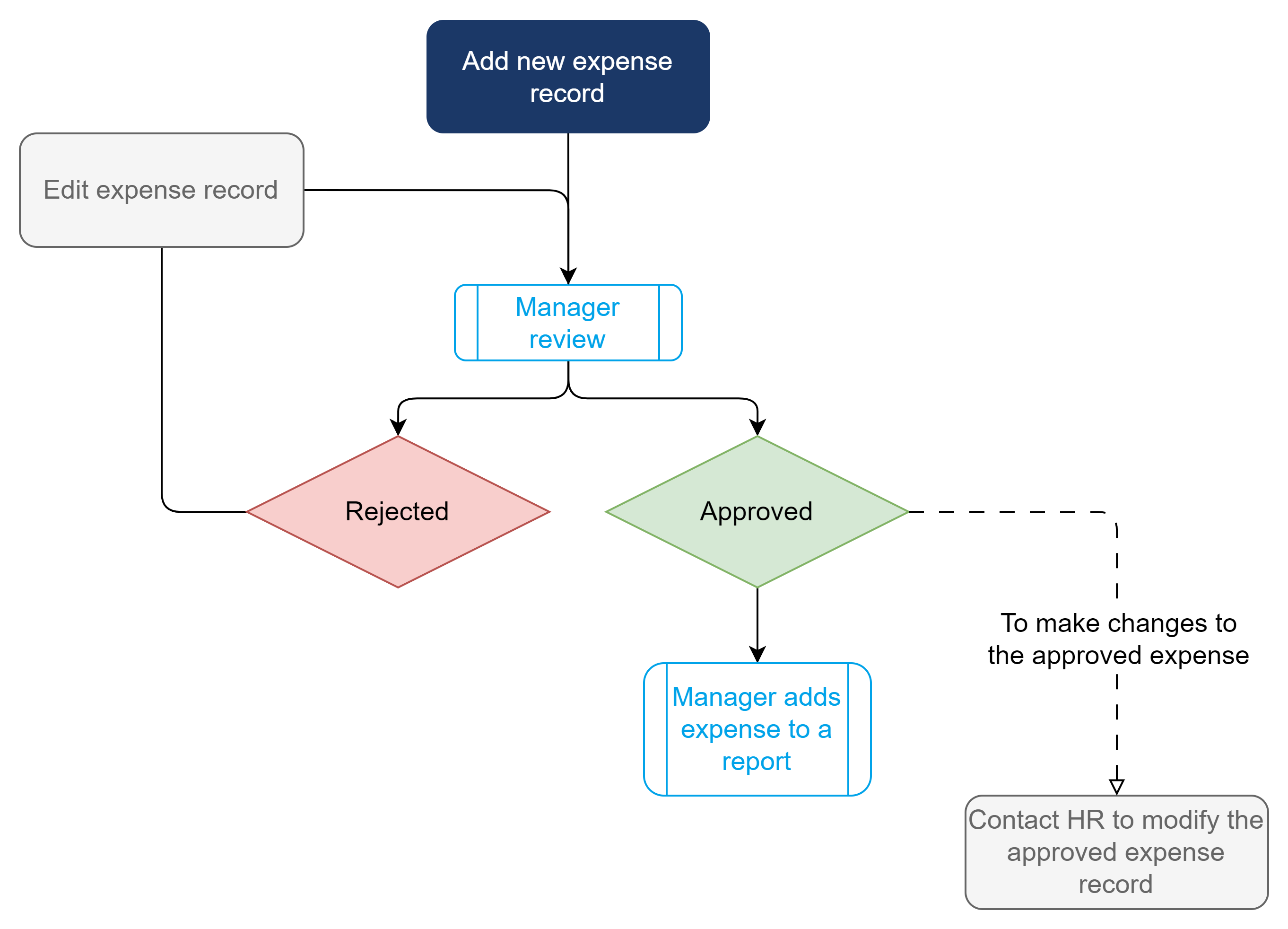
The **expense approval process** in **Marco** follows these steps:
1. **Staff submits an expense record.**
2. **Manager reviews and approves the expense record.**
3. **Manager adds the approved expense to a payroll or expense report.**
4. **Payment is processed according to company policy.**
The **payment currency** is based on the staff member’s **designated country**. If the staff member is an **Expat**, they can choose to be paid in their **home or host country’s currency**.
Expense Approval Flow
***
### **Expense Review Outcome**
Once your expense has been reviewed, you will receive an **email notification** with the outcome.
You can also check the **expense status** in **My Expense**.
* If your expense is **rejected**, you can select the expense to **view the rejection notes** and edit the expense for resubmission.
* For more details on editing expenses, see **Editing Expenses**.
***
### **Changes to Approved Expenses**
Once an expense is **approved**, it **cannot be edited or deleted**.
If you need to make changes to an approved expense, contact your **HR representative or vendor** for assistance.
***
### **Editing Expenses**
You can edit **unapproved expenses**, including **rejected expenses**.
#### **To edit an expense:**
1. Go to **My Expense**.
2. Under the expense, select **⋮ (three-dot icon) > Edit**.
3. The **Edit Expense** screen appears.
4. Update the relevant fields.
5. Select **Submit**.
Your expense has been **resubmitted for review**, and the status of a rejected expense will update to **Submitted**.
***
### **Deleting Expenses**
You can only delete **unapproved expenses**.
⚠ **Note:** Deleting an expense **cannot be undone**. However, all deleted expenses can be viewed in **Deleted Items**.
#### **To delete an expense:**
1. Go to **My Expense**.
2. Under the expense, select **⋮ (three-dot icon) > Remove**.
---
# Agent Instructions
This documentation is published with GitBook. GitBook is the documentation platform designed so that both humans and AI agents can read, navigate, and reason over technical content effectively. Learn more at gitbook.com.
## Querying This Documentation
If you need additional information that is not directly available in this page, you can query the documentation dynamically by asking a question.
Perform an HTTP GET request on the current page URL with the `ask` query parameter, and the optional `goal` query parameter:
```
GET https://help.marcopayroll.com/marco-user-guide-x4/2025/marco-platform-structure/customer-portal/personal-guide/submitting-work-related-expenses.md?ask=&goal=
```
`ask` is the immediate question: it should be specific, self-contained, and written in natural language.
`goal` is optional and describes the broader end goal you are ultimately trying to accomplish on behalf of the user. GitBook uses it to tailor the answer towards what is most useful for that goal.
The response will contain a direct answer to the question and relevant excerpts and sources from the documentation.
Use this mechanism when the answer is not explicitly present in the current page, you need clarification or additional context, or you want to retrieve related documentation sections.