clockMy Time

The My Time page is where you can manage your time-related information and requests in Marco. Here, you can view your time-off records, submit timesheet requests such as overtime, worktime, and absenc

๐Ÿ“† Leave Balance

Your leave balance includes all leave types that are assigned to you by default, such as annual leave and sick leave. Each leave item contains the following details:

  • Effective date

  • Remaining leave balance

  • Entitlement amount

  • Carried-over amount, if any

  • Carried expiry date, if any

The remaining leave balance includes any unused days from your entitlement amount and carried-over amount. When the carried-over leave expires, any unused amount will be subtracted from the remaining balance.

You can view your leave balance in My Time > Leave Balance

Some leave types, such as maternity leave or bereavment leave, may not be assigned to you by default. To apply for such leave, contact your HR representative to grant the leave type to you.


๐Ÿ“‹ Time-Off Records

You can view your past and upcoming time-off requests here, including the status of each request, such as approved or rejected.

You can view your Time-Off Records in My Time > Time-Off Records


๐Ÿ›ซ Public Holidays

You can view a list of your public holidays in My Time > Public Holiday. Each public holiday is linked to a country or region. By default, your public holidays will be assigned to you based on your designated country. However, your public holiday list may also be customized based on other requirements.


๐Ÿงพ Timesheet

The Timesheet section is where you can submit requests for Overtime, Worktime, and Absence time. You can also check the status of each request to see whether it has been approved or rejected.

To create a new request, select Add Request and fill in the required details. You may also include notes and upload supporting documents if needed. Once everything is complete, select Submit Request to send it for approval.

You can access this section in My Time > Timesheet.


โž• How to Add a New Leave Request

1

Click New Leave Request

Either in Leave Balance, Time-off Records, or Public Holiday page

2

Select your leave dates

3

Optional: Choose the session detail for your leave:

  • Morning only

  • Afternoon only

  • Full day

4

Attach any supporting documents and notes if needed

5

Review your details, then click Submit when ready

โ“ Unavailable Leave Types

Some leave types, such as maternity leave or bereavement leave, may not be assigned to you by default. To apply for these, contact your HR representative to have the leave type granted to you.

Once the leave type is available, follow the standard procedure to request leave.


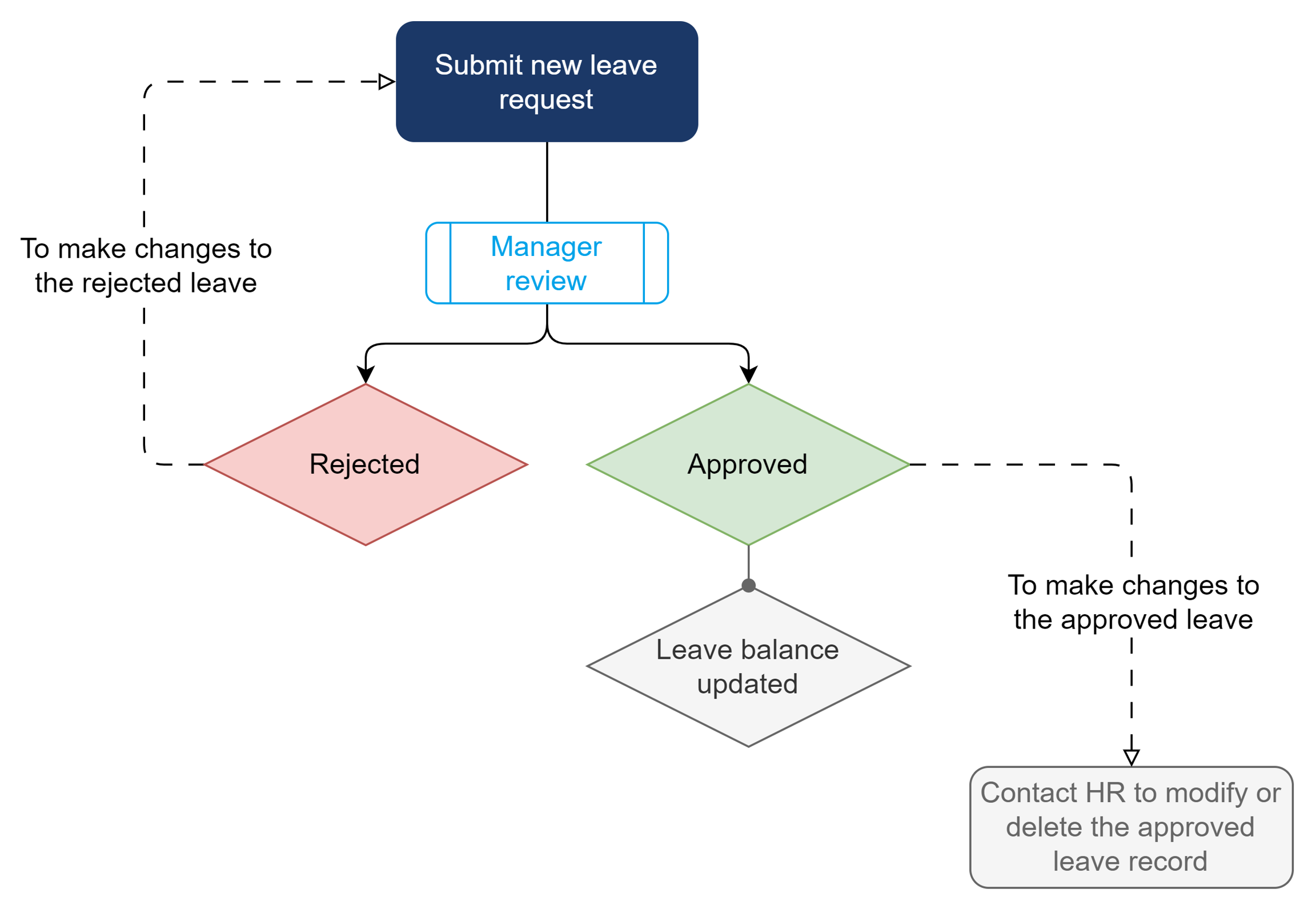
โณ Leave Request Flow

The leave request process in Marco follows a simple flow:

  1. Staff submits a leave request.

  2. Manager reviews the request.

  3. Staff is notified of the outcome.

Leave Request flow

๐Ÿ” Leave Request Outcome

Once your leave request has been reviewed, you will receive an email notification about the outcome.

You can also check the status of your leave request in My Time > Time-off Records.

  • If your leave request is rejected, you can select the request to view the rejection notes.

  • Rejected leave requests cannot be edited for resubmission, but you can create a new request instead.


โœ… Changes to Approved Leave

Once a leave request has been approved, you cannot delete or edit it.

If you need to cancel or modify an approved request, contact your Manager, HR representative or vendor for assistance.


๐Ÿ“ Editing Leave Requests

You cannot edit a submitted leave request on your own. Only your Manager, HR representative or vendor can make changes to a leave request, and the request must be approved before it can be edited.

To edit a leave request:

1

Go to My Time > Time-off Records

2

Under the leave request, select โ‹ฎ (three-dot icon) > Edit

3

Update the relevant fields

4

Select Submit. Your updated leave request has been submitted


๐Ÿ—‘๏ธ Deleting Leave Requests

You can only delete unapproved leave requests.

โš ๏ธ Note: Deleting a request cannot be undone. However, all deleted requests can be viewed in Deleted Items.

To delete a leave request:

1

Go to My Time > Time-off Records

2

Under the leave request, select โ‹ฎ (three-dot icon) > Remove

Last updated